

MetaTrader4 (MT4)
MetaTrader4 (MT4)
Automate your trade with advanced indicators, expert advisors and pattern detection software supported by Pepperstone's fast order execution and razor-sharp FX spreads.
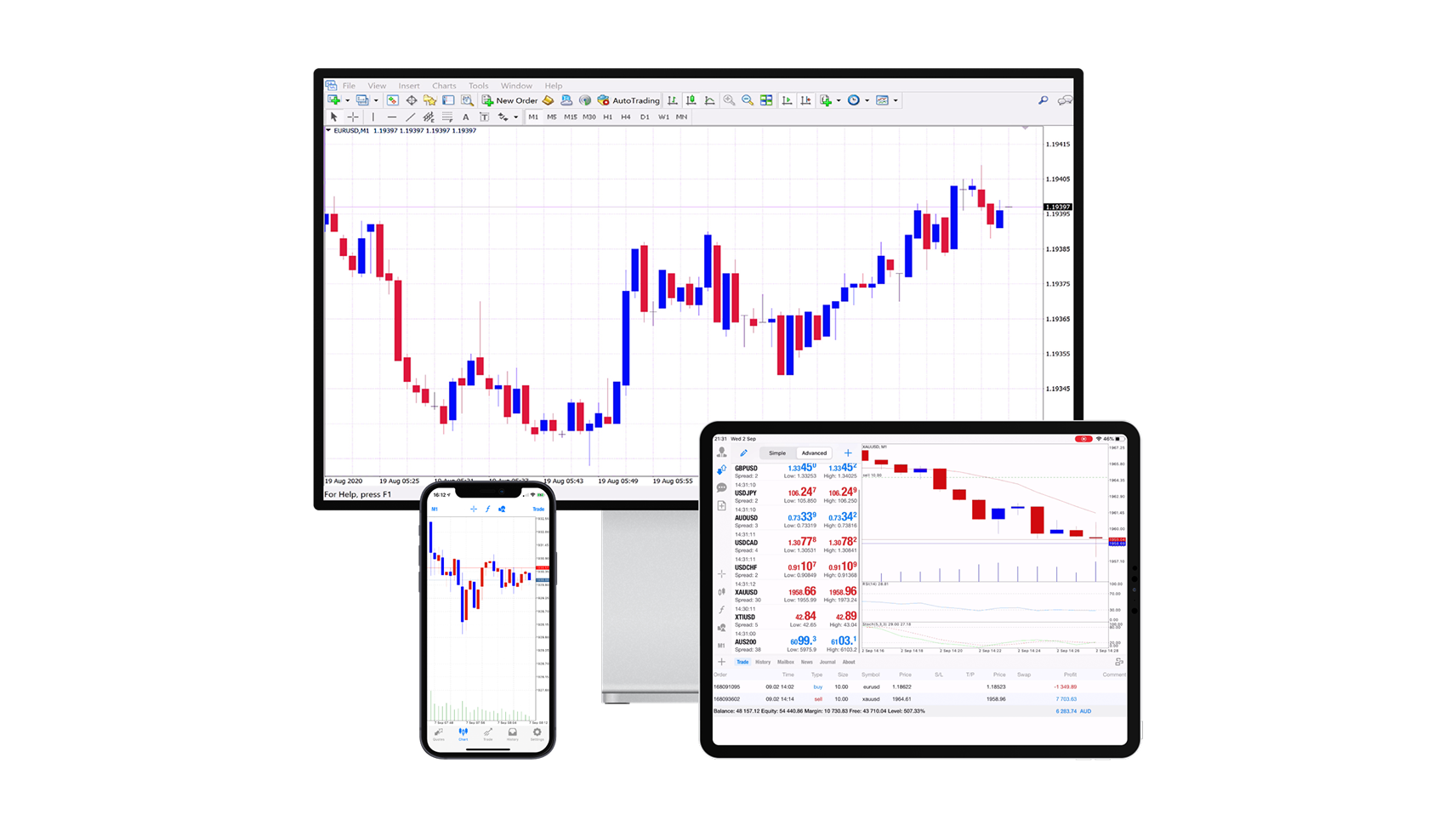
Why choose MT4?
Smart Trader tool
Make more informed trade decisions, manage risks and automate your strategies to save valuable trading time.
Individualisation
Create your own trading environment by combining indicators and scripts to develop your own MQL4.
Built-in indicators
Improve your market analysis with numerous pre-installed indicators as well as thousands of free, customizable indicators.
Low minimum positions
Trade from 0.01 Lots and thus retain more control over your risk when trading high volumes.
Advantages of MT4 at Pepperstone

Small spreads
From 0.0 pips at Forex on a Razor account and 0.1 pips at Gold.1

Fast, reliable execution
From 50 milliseconds with 99.32% execution rate without trade intervention.²

Dedicated Support
We are at your service 24 hours a day from Mo-Fr and 18 hours a weekend.

Worldwide recognized brand
We have 830,000 customers in 160 countries and 10 locations worldwide.3
Which Pepperstone account is compatible with TradingView?

CFD Standard
You get a similar exposure to the direct purchase of the underlying market, but you only have to use a fraction of the full value of your position.
All fees, except overnight financing, are included in the spread without additional commissions.

CFD Razor
Provides the same trading terms as our standard account, but with commission-based fees for Forex.
Raw FX spreads from 0.0 points 1 as well as fixed, transparent commissions from USD 3.50 per lot and side.
Register with MT4 and Pepperstone
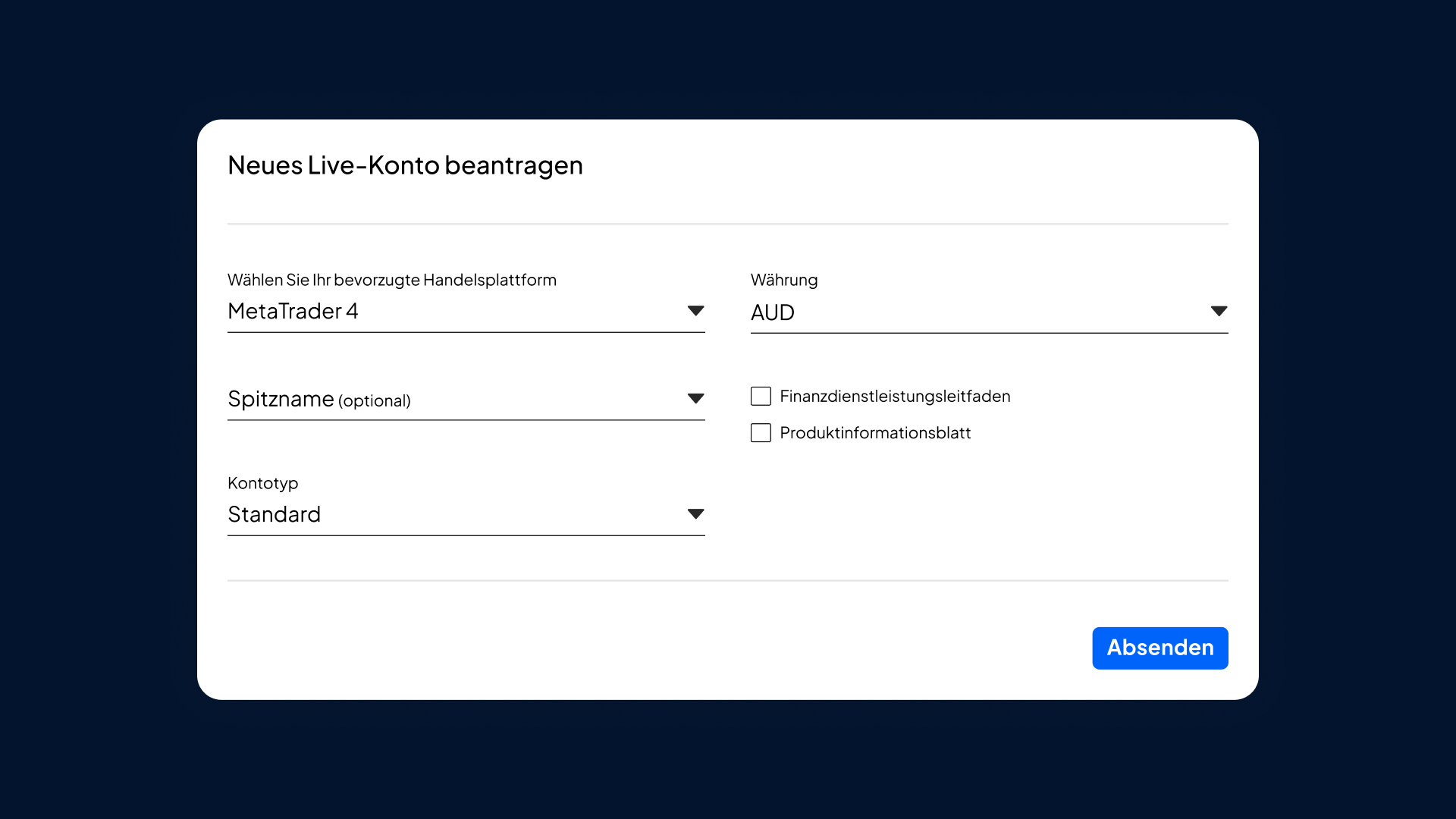
Create a demo or live account at Pepperstone and select MT4 as their preferred platform.
Open MT4 on your chosen medium and log in to your account.
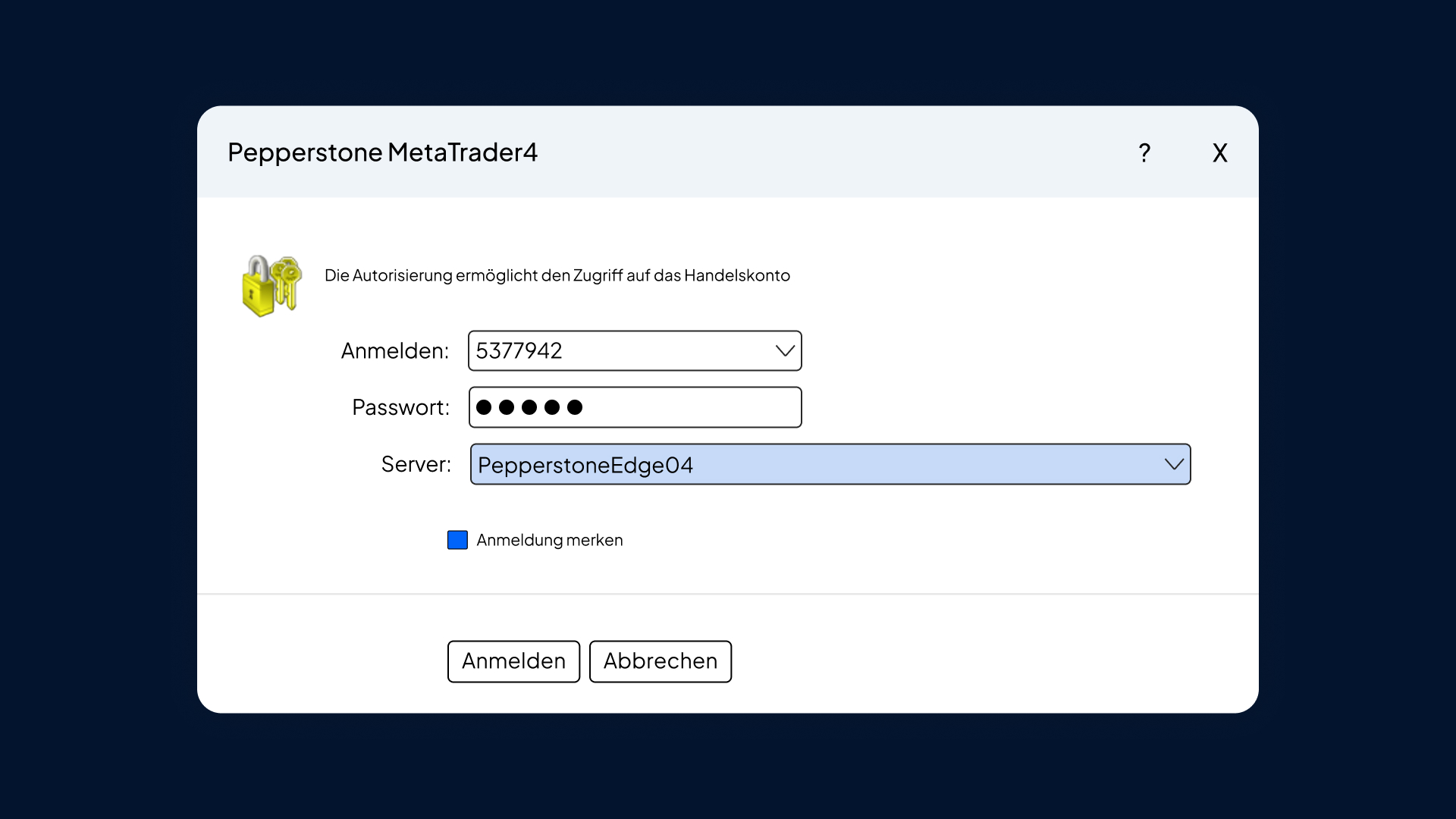
Search for the Pepperstone server and log in with your Pepperstone data.
How to start:
We are also happy to provide you with our resources as a starting aid when setting up the MT4 app. Just click on one of the links below and look into the respective videos.
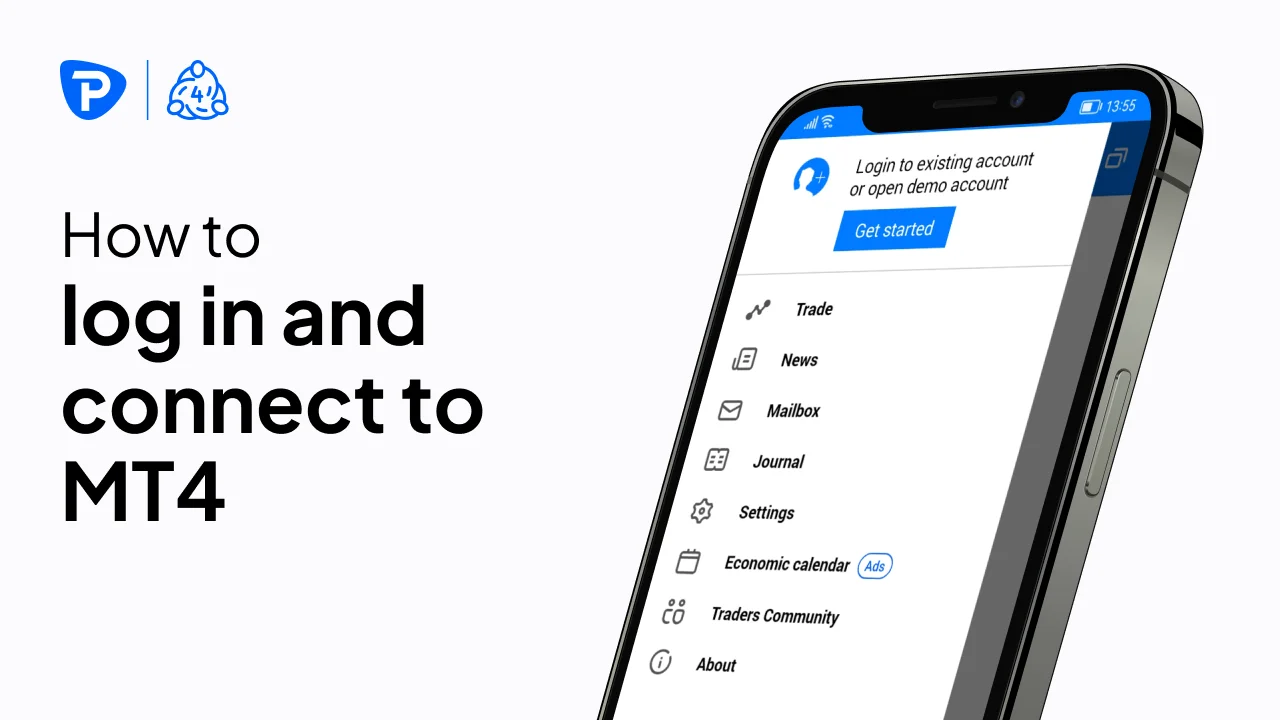
How to log in and connect with MT4
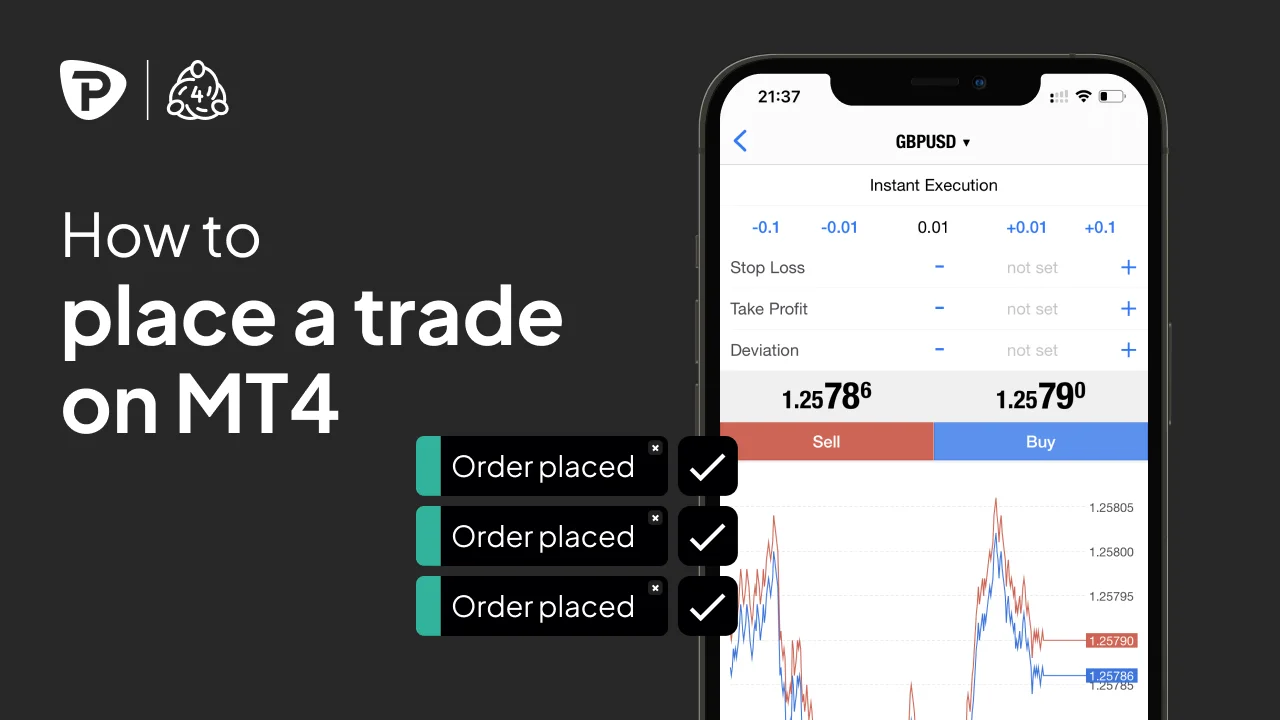
That's how you do a trade.
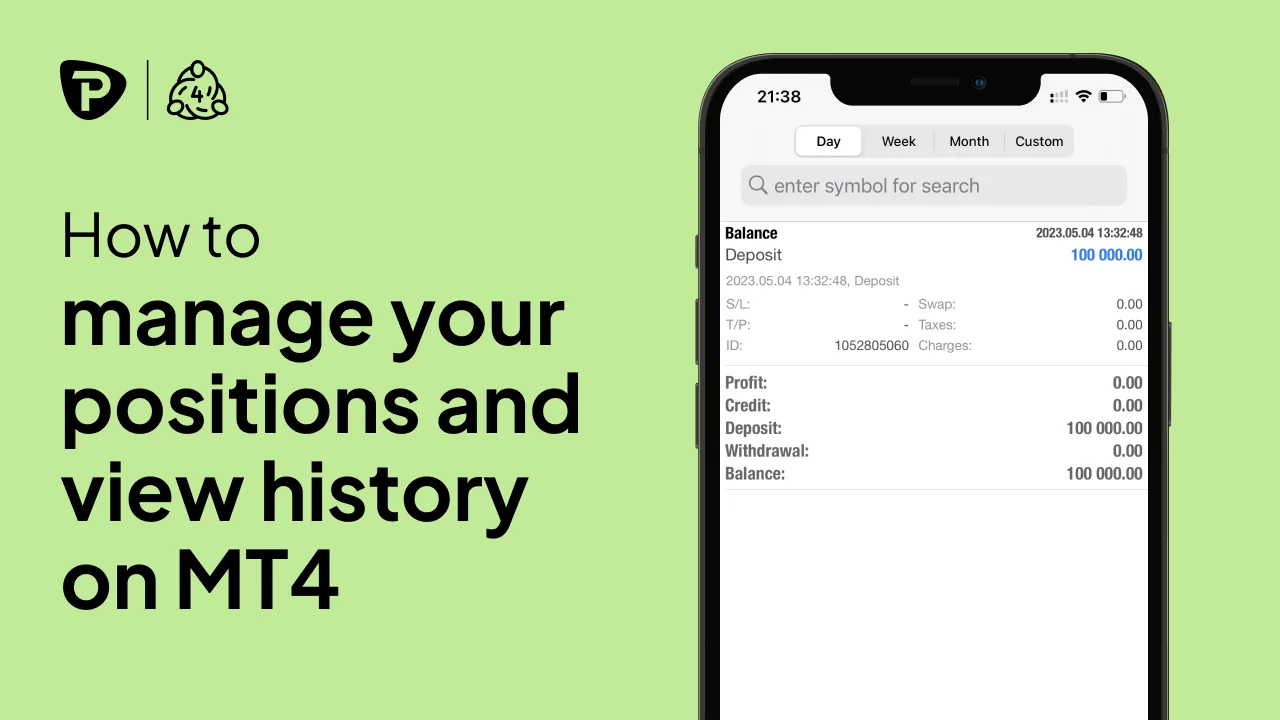
How to manage positions and display the course.
So adjust your watchlist.
How to adjust charts and indicators.
FAQs
First download MT4. To do this, log in to your secure customer area and navigate to Access to trading platformsThey are now guided through the download process and will be asked at the end for their account number, password and server name.
If problems arise when entering the information, we recommend the following:
- Copy your password into the field without spaces.
- Enter your server IP address manually.
- Delete the server and manually enter the following ‘edge<server number>.pepperstone.com' for example: edge03.pepperstone.com
If that doesn't help, go to Live Chat and we will be happy to help you.
To see an order:
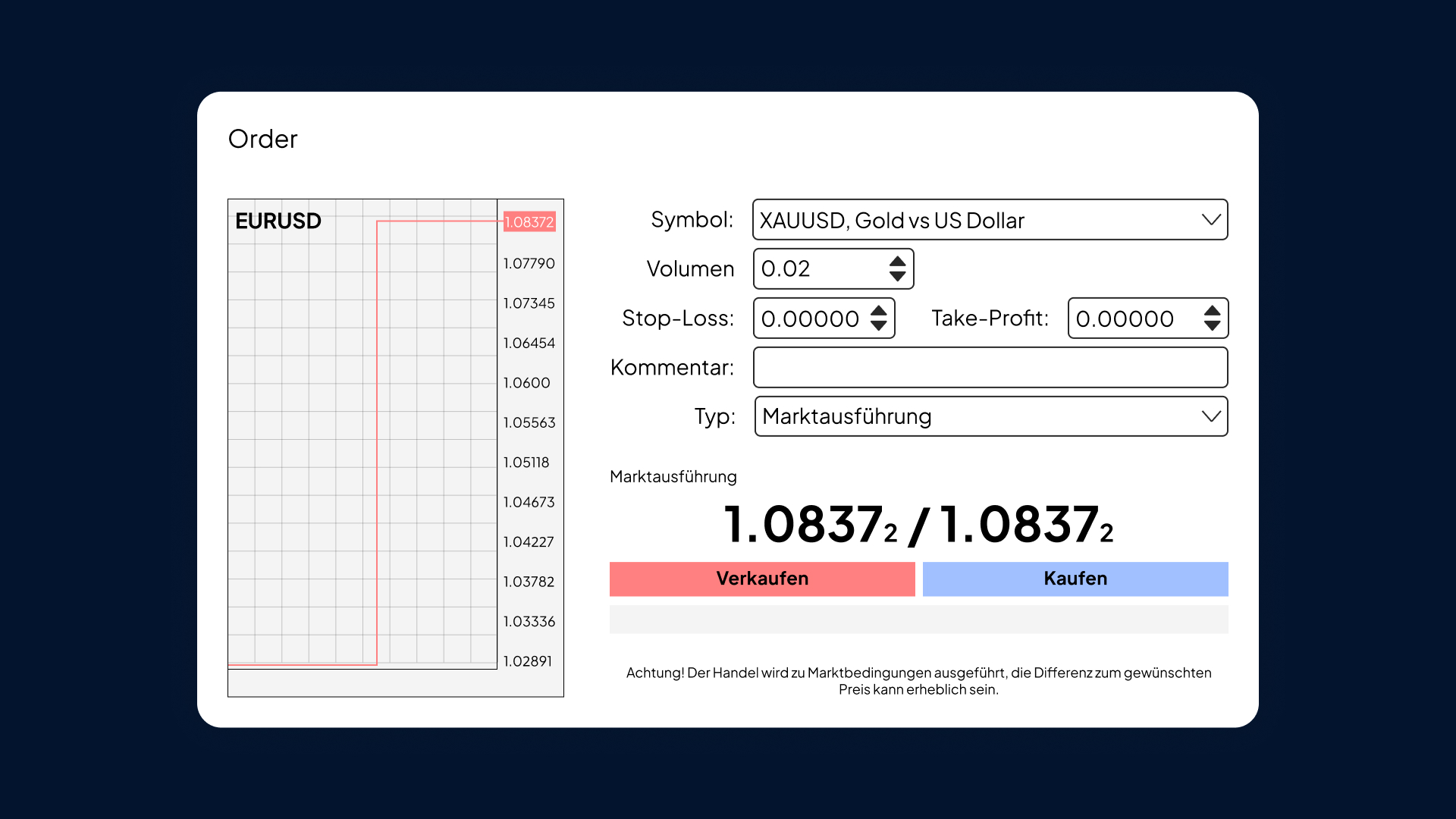
- Open a new window and select "New Order" or simply use the shortcut via the F9 button.
- Add your trading volume based on the FX standard slot (USD 100,000 exposure and USD 10 of the base currency per pip).
- Then select your stop loss and take-profit. You can do that before or after the order task.
- The "Type" field shows the type of order you want to place. "Market execution is an instant order, and with "Pending Order", you can set the price at which you want to trade."
To change an order:
Right-click the trade in the 'Terminal Trade' section and select 'Change 'or delete'.
You can change stop loss or take-profit orders in two ways:- Enter the desired distance from the current price. For example, 200 points correspond to a stop loss of 20 pips from the current market price.
- Alternatively, you can enter the exact course you want to exit into the stop loss field.
It is very easy to load the Expert Advisor (EA) or indicator.
- Download your EA or indicators as a file to your computer.
- Enter 'MT4' and select 'File'.
- Open the folder 'Data'.
- Enter MQL4, which allows you to drag the file & Drop either into the 'Expert Advisors' folder or drag 'Indicators'.
- Restart the MT4 platform, and your Expert Advisor or Indicator will be displayed in your 'Navigator' list.
Customizing your templates is a great way to make your MT4 platform more individual and user-friendly. Templates allow you to control how your MT4 charts are displayed, and see which indicators are included in your charts.
To create a template, you need to:
- Add all Expert Advisors (EAs) or indicators you want to have in your chart.
- Right-click on your chart.
- Select "Properties" where you can update your color scheme and change general settings.
- After making your individual changes, right-click on the chart.
- Choose " Templates" and name the file you have just edited. You can create multiple templates for different strategies. "
Tip: Name this template as "Standard" so that all diagrams are opened by default with this template.
MT4 and MT5 are among the most popular trading platforms in the world, but they differ in their scope of functions. MT4 is considered easy to use, intuitive and is suitable for beginners as well as experienced traders due to its versatile possibilities.
MT5, on the other hand, brings with it extended features that raise trading to a new level. The platform is characterized by a wide range of time frames, extensive analysis tools and a large number of pending orders for stocks, raw materials, indices and other markets.
MT5 includes, inter alia:
- Extended time frame - A total of 21 different intervals compared to 9 at MT4. This is particularly interesting for scalpers and experienced traders who want to analyze the market in detail.
- Additional Order Types - While MT4 mainly offers stop and limit orders, MT5 also enables the use of stop limit orders. This allows the execution price to be more targeted in order to avoid unfavorable trades in volatile market phases.
- Programming language MQL5 - Although extensive instructions and resources are still available for MT4 due to its widespread use, more and more users switch to MQL5. This language is more modern, efficient and easier to handle so that scripts can be created and adapted more easily.
- Integrated economic calendar - Provides real-time updates on macroeconomic events. In addition, MT5 has a built-in MQL5 community chat and an internal email system.
Conclusion: MT4 is an uncomplicated and efficient choice for beginners or traders who focus on Forex trading. Those who prefer a more powerful platform with a wider range of functions and advanced analysis options are better served by MT5. MT5 is particularly interesting for 24-hour trading five days a week with leading US stock CFDs³.
Discover the better way of trading!
Start now with Pepperstone and become part of our global community with over 830,000 traders.³ Sign up in a few minutes via our simple login process.
1
Register
Log in with your e-mail address and receive a free demo.
2
Answering Questions
We check whether our products are suitable for you.
3
Verify
Your security is our top priority.
4
Depositing money
You can start trading now.
1 Additional fees and costs may apply.
2 99.32%. The execution rates are based on all trade data between 01.10.2025 and 31.12.2025.
3 Total number of accounts held by Pepperstone Group worldwide, as of October 2025
4 24-hour trading 5 days a week for selected US stock CFDs. Please refer to the instrument specifications in the trading terminal for details.